Connect a LinkedIn sender
Turn on two-step verification with an authenticator app, save its setup key, and add the account to Orbitmate.
Updated 24 October 2026
A sender is a LinkedIn account that Orbitmate sends messages from. To connect one, you need the account's email and password, plus the setup key of its two-step verification, so Orbitmate can enter the sign-in code for you whenever LinkedIn asks.
Get the setup key from LinkedIn
On LinkedIn, open Me → Settings & Privacy → Sign in & security → Two-factor verification. The row shows whether it is on.
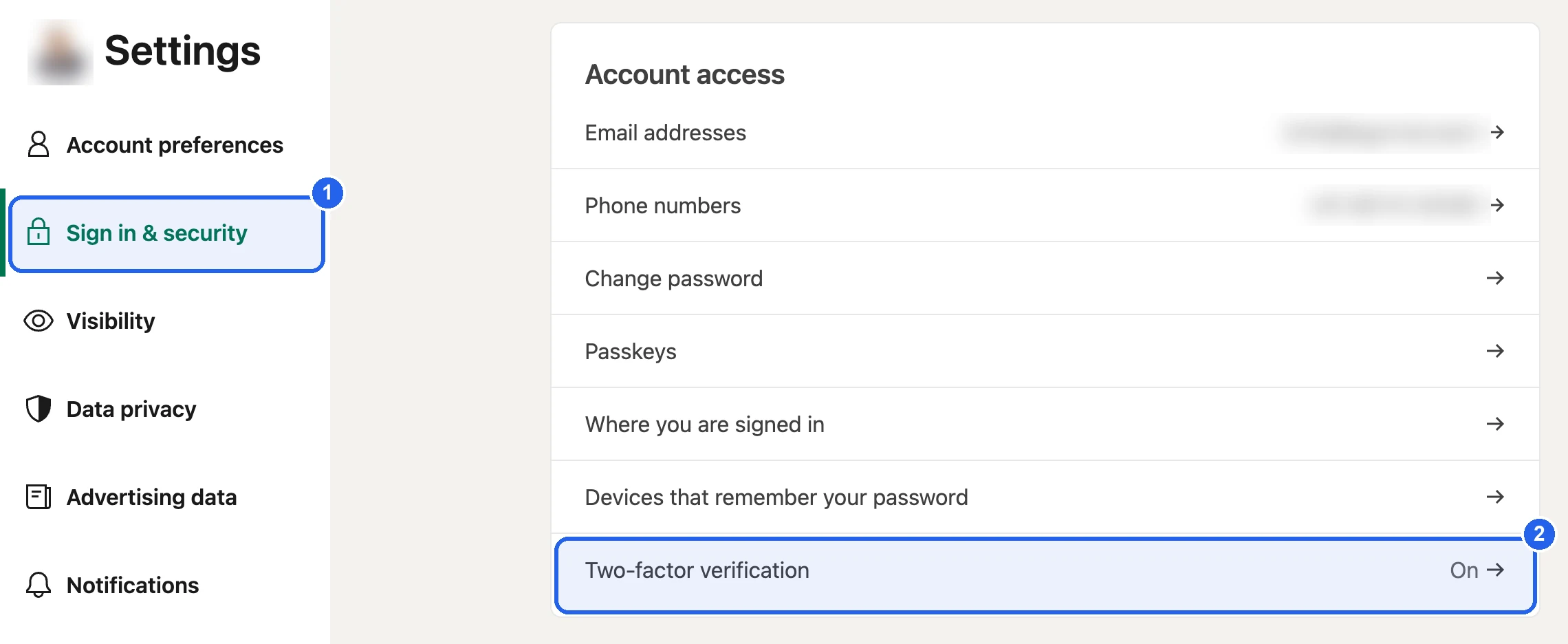
Pick the case that matches the account today:
Turn it on
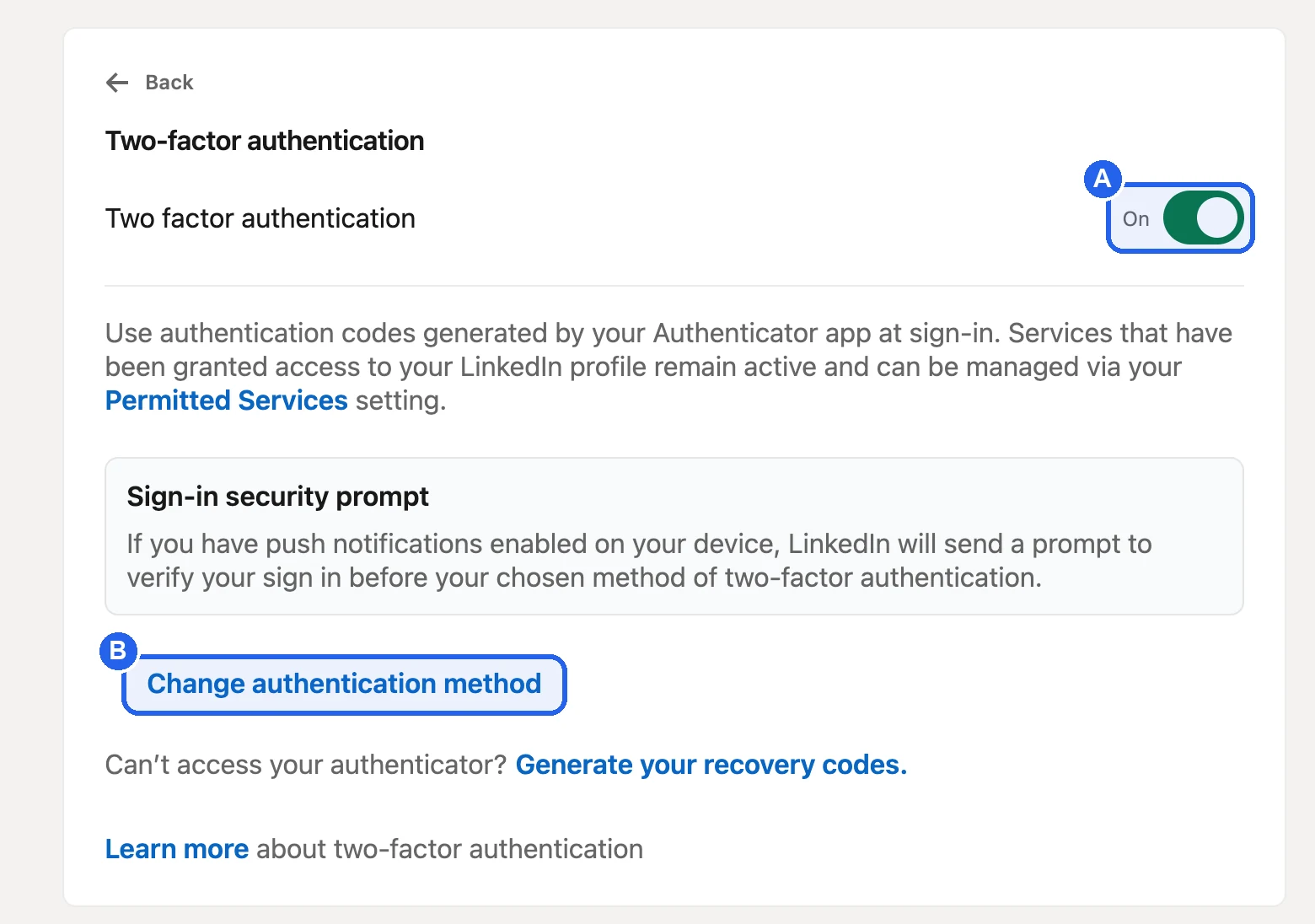
On the Two-factor authentication page, turn the switch on.
Pick Authenticator App
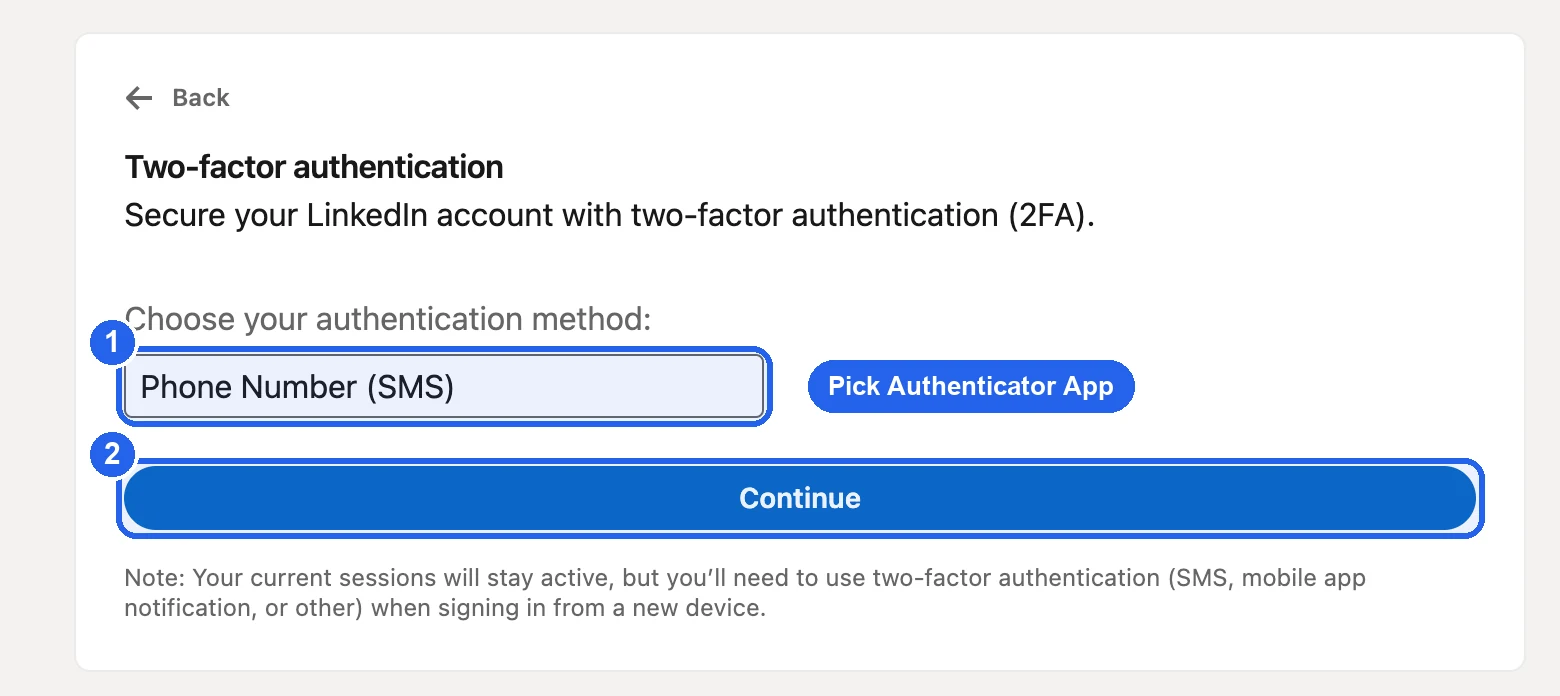
Under Choose your authentication method, pick Authenticator App and choose Continue. LinkedIn may ask for your password.
Save the key
LinkedIn shows a QR code and a setup key. Go to Save the key and finish on LinkedIn below.
Change the method
On the Two-factor authentication page, choose Change authentication method (B).
Pick Authenticator App
Change Phone Number (SMS) to Authenticator App and choose Continue. LinkedIn may ask for your password.
Save the key
LinkedIn shows a QR code and a setup key. Go to Save the key and finish on LinkedIn below. From now on, sign-in codes come from the app instead of by text.
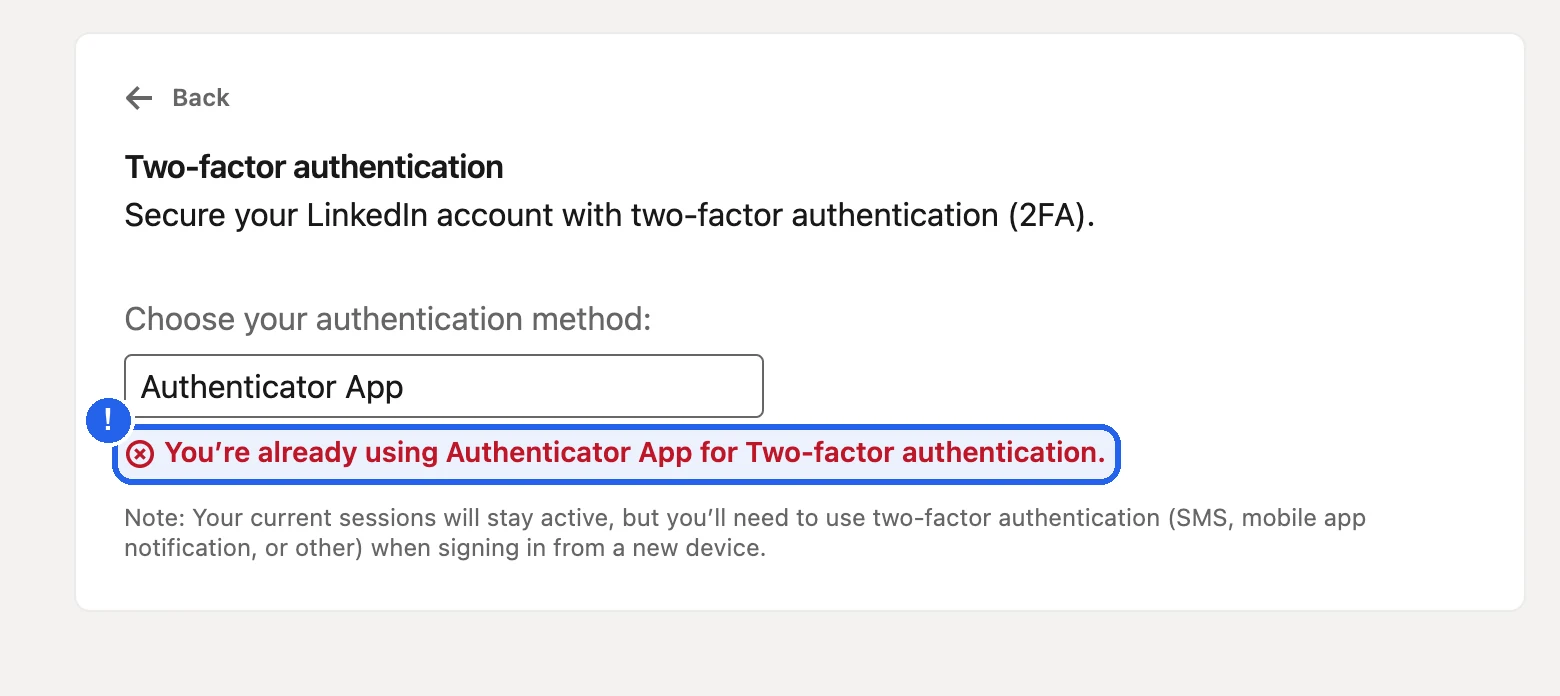
LinkedIn shows a setup key only once, when the app is first added. If you didn't save it, you need a new one. Picking Authenticator App again only says you already use it:
Turn it off
On the Two-factor authentication page, turn the switch off (A in the screenshot in the previous tab) and confirm with your password.
Turn it on again
Turn the switch back on, pick Authenticator App and choose Continue.
Save the new key
LinkedIn shows a new QR code and setup key. Go to Save the key and finish on LinkedIn below.
If you already saved this account's setup key when you first turned on the authenticator app, you can skip LinkedIn and go straight to Add the sender in Orbitmate.
Save the key and finish on LinkedIn
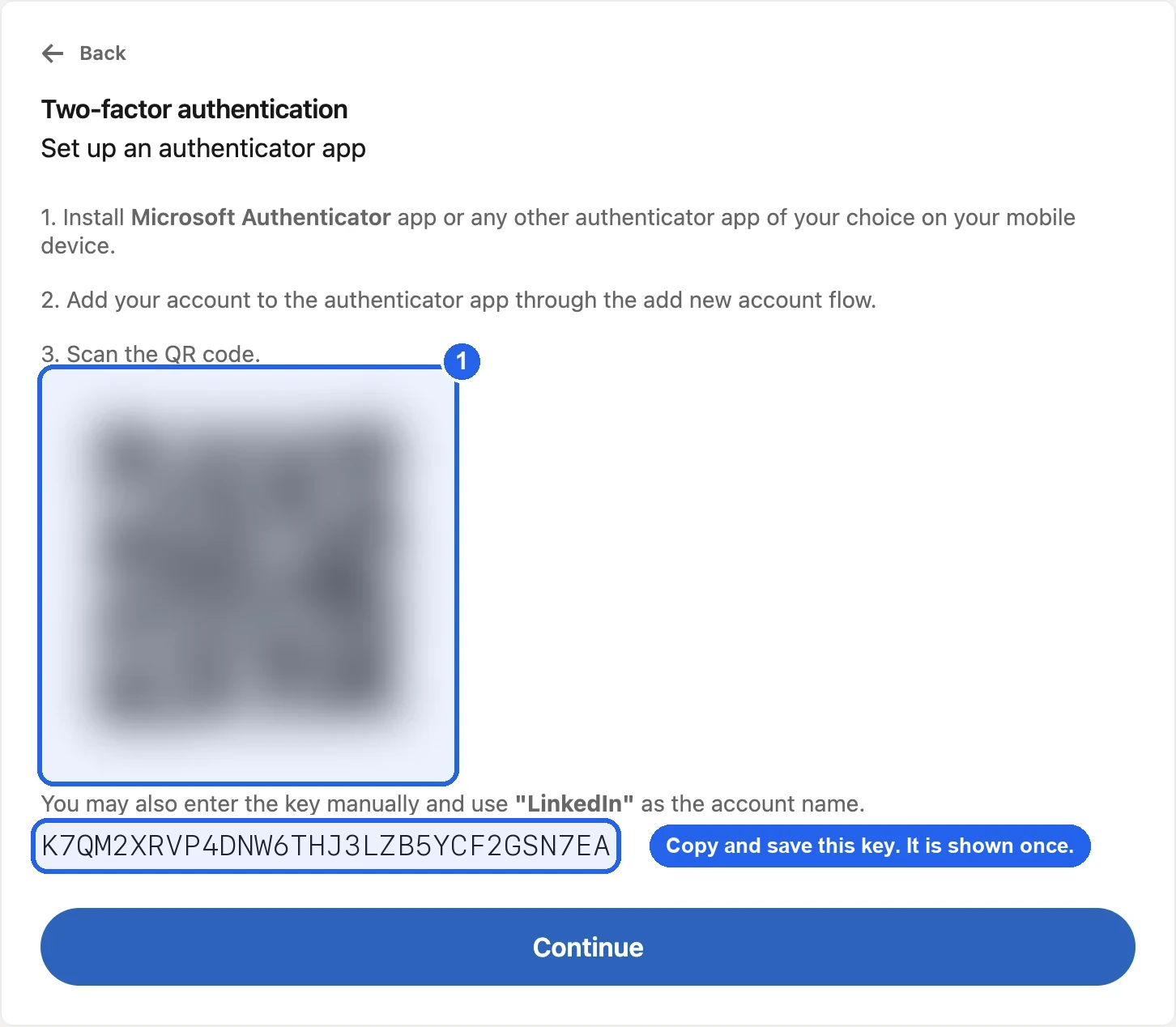
Copy the setup key
Copy the line of letters and digits under the QR code and keep it somewhere safe, such as your password manager. This is what Orbitmate needs. LinkedIn won't show it again.
Add it to your phone
In your authenticator app, add an account and scan the QR code (1), or type the key in by hand with LinkedIn as the account name. You still need your phone's codes to sign in yourself.
Confirm on LinkedIn
Choose Continue and type the 6-digit code your app shows. Two-step verification is now on with the authenticator app.
Save recovery codes
Back on the Two-factor authentication page, choose Generate your recovery codes and store them with the key. They get you in if you lose your phone.
Add the sender in Orbitmate
Start a new sender
Open Senders and choose Add sender. Enter the account's LinkedIn Email and choose Create and Configure.
Enter the sign-in details
Under Finish adding this LinkedIn account, enter the password, turn on Two-step verification, and paste the Setup key. Spaces are fine.
Check the code matches
Under the key, Orbitmate shows Code right now. It should match the code in your authenticator app. If it doesn't, copy the key again.
Sign in
Choose Save and continue, pick the Country the account usually signs in from, then choose Sign in to LinkedIn. The sender shows Signing in… and then Live. It can now be picked in a campaign.
If the key is refused
- "That's a sign-in code…": you pasted the 6-digit code. Paste the setup key instead.
- "A setup key only has letters and the digits 2 to 7…" or "That key looks too short…": part of the key is missing or mistyped. Copy it again from where you saved it.
- No key saved anywhere: follow the Already use an authenticator app tab above to get a new one.
For LinkedIn's own instructions, see Turn two-factor authentication on and off in LinkedIn Help.
Related articles
Was this helpful?